Showing posts with label Tips. Show all posts

Must Know Tips &Tricks For The Galaxy S II

The Galaxy S II is Samsung’s latest and greatest superphone and judging by the rate at which these things are selling, very soon millions around you will have a one. The device packs a dual core 1.2 Ghz processor, a 4.3″ Super AMOLED Plus display, runs Android 2.3.3 out of the box with Sammy’s TouchWiz 4 on top.

TouchWiz is Samsung’s custom UI layer that differentiates the SGS 2 from the myriad of other Android slabs and Samsung has managed to add enough value to it to make it a very welcome addition. Some of its benefits become obvious, but some tweaks and shortcuts that can make your experience even better are tucked away. This post aims to showcase a bunch of tips and tricks that every SGS 2 user should know. Some of these might even work on older TouchWiz devices.
Hit play and tell us in the comments section if you think I’ve skipped any must know shortcut/tip!

If you can’t see the video embedded above, hit this link to go to YouTube. If you’d like to read instead of watch the video, read on.
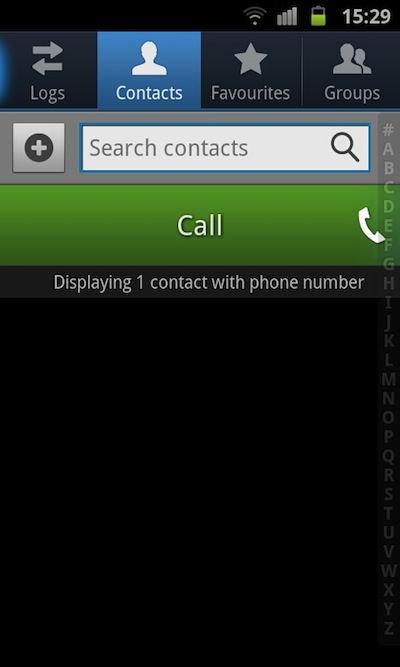
  • Quick Calls & Texts: Once you have the contact you want to call or text in front of you, instead of entering it and then carrying out the operation, you can simply swipe left to place a call or swipe right to enter a text.
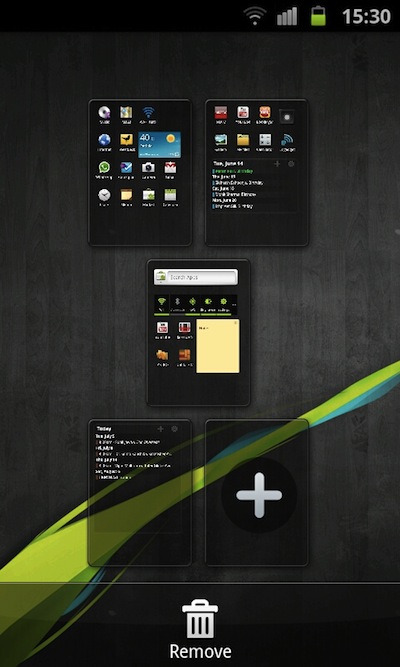
  • Homescreens: TouchWiz supports upto 7 homescreens and jumping between them can quickly become a problem, but you can easily pinch to get an overview and then quickly jump to the screen you want.
  • Screenshots: Taking screenshots on Android devices is a pain, but on the Galaxy S2, you can simply hit home button and then the power key while holding onto home to take a screenshot. You can then see them in the Gallery.
  • Brightness Adjust: The notification bar can serve as a brightness scroll on the Galaxy S 2 if you are not using the  auto brightness option. Just hit the notification bar, hold for a second and swipe left to decrese and right to increase the brightness. This is one of my favourite tweaks.
  • Browsr Text Wrap: Out of the box the Galaxy S2 doesn’t automatically reflow the text in the webpage if you zoom in. But if you just goto settings and check the ‘auto-fit pages’ option, all is well again.
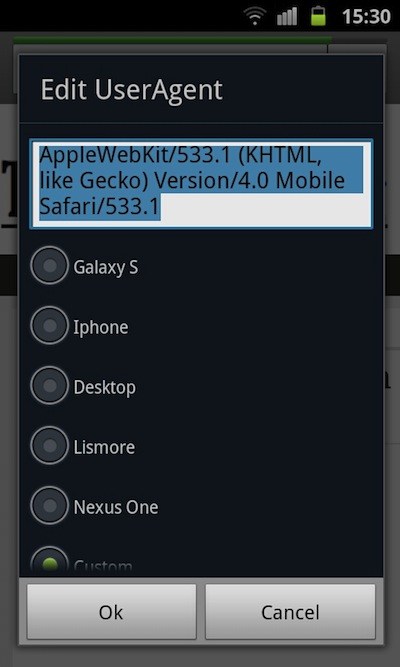
  • User Agent Change: The browser lets you change the user-agent without needing an extra app, just type ‘about:useragent’ and you can choose between the iPhone, Nexus One, Desktop, Galaxy S or even enter a custom string.
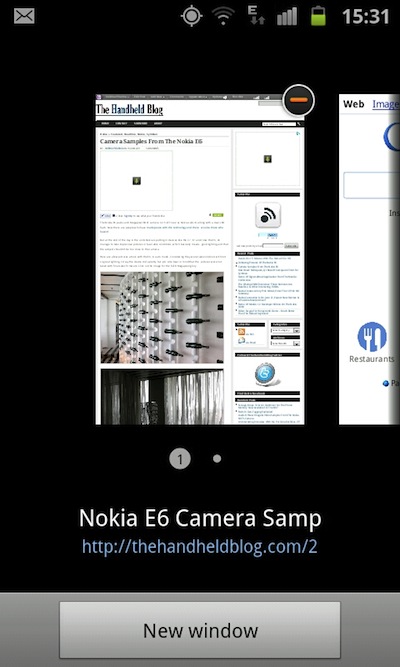
  • Pinch Based Tab Switching: While you are viewing a webpage, just pinch out and you will be shown the other tabs that are open, or you can even open a new one. Handy, finally possible on the Galaxy S2.
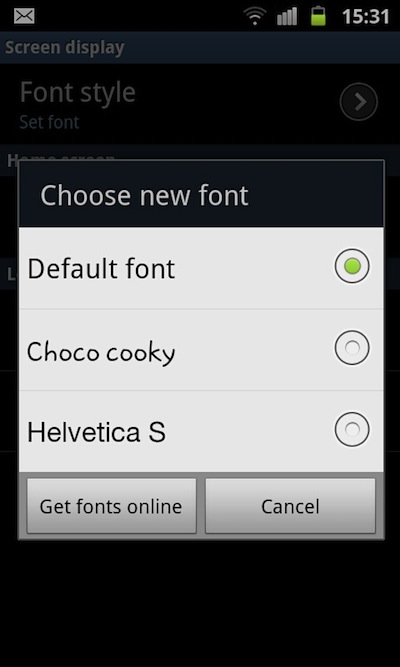
  • Custom Fonts: The Galaxy S2 comes with inbuilt support for custom fonts. Just goto Settings -> Display -> Screen Display -> Font Style and choose from the three options or follow the link to download more from the Android Market.
  • Change Bottom App Drawer: Its just easier to explain if you watch the video, around the 03:28 minute mark.
  • Quick Slider: Whether you are in the homscreen or the app list, just roll your finger over the dots at the bottom of the screen and see the screens fly by. Beautiful and functional.
  • Video Lock: Pressing the power button in video player locks the screen, now you can hold the device any way you like, no accidental presses.
  • Testing Mode: *#0*# in the dialer enters the LCD test mode, useful if you are hunting for dead pixels or a few other things.
  • Search Key: The SGS2 like the SGS doesn’t have a dedicated search key that all other Android devices have, but if you long press menu, it doubles as a search key and pulls search up, wherever you need it.
  • Quick Dialing: On the dial pad spell the name of your contact and see it popup, great when you need to make a quick call.
  • Bluetooth Mouse: The SGS 2 supports using a bluetooth mouse, the functionality is more of a proof of concept vis-a-vis being actually useful. TV out presents a useful senario.
Any others you would like to add? Let us know in the comments section below!

Remove Picasa Web Albums From Android Gallery

Android phones have the capability of not only  showing what you have inside the memory card but also from your google picasa web albums, even your profile pictures google and facebook profile. This is done through sync feature of web accounts which is a very nice feature of android OS. You can synchronize much more accounts than google or facebook by navigating into Settings > Accounts and Sync in your android phone.

But for most of the users have complaints about showing their private photos on gallery app. This is quite frustrating where there you have blogger accounts and your uploaded images are shown up in your smart phone gallery. however the removal of these pictures from gallery is not direct but is related to account sync. Here's how to remove picasa web albums from gallery of your android smartphone.

To disable Web pictures from gallery:

1. On your android phone, goto Settings > Accounts and Sync settings > manage accounts.

2. This will show up the internet accounts that you've currently synching. Open your gmail account and uncheck Picasa web albums. you're done. 
3. After the media scan you'll notice that the picasa images are being removed from gallery.
---------------------
Thats a problem right there!  While I dont have a tablet or Honeycomb, that definitely should not be happening.  So in your Settings - on the tab - in your Google Account you have unchecked Sync Picasa?  And you have no other application on the tab such as Picasa Tool?  or Just Pictures or anything that is set up with your account?  If not then theres something snazzy going on...

Heres a suggestion -- use a file manager (Explorer or any file manager) and go to 

/mnt/sdcard/Android/data/com.cooliris.media and delete the whole "com.cooliris.media" file.  Dont worry about losing anything -- that is the cached build of all your media...local and non-local i.e. your Picasa.  Reboot the tab.  It will rebuild itself upon Runtime.  Does the Picasa stuff still show up?  Make sure everything is unchecked and theres no direct connection to your Picasa Web Album.

If that does not work -- go ahead and delete the whole /mnt/sdcard/Android/data folder -- thats mostly just cache stuff and you may lose some data but most of that stuff is synced.  Reboot.  If you are root - then go to your recovery and clear Dalvik.  It will rebuild upon starting runtime.

let us know what you try -- this is an interesting problem. We may have other ideas.. but thats what I would do first off...

---------------------
Hi,

Try the following steps it will work


1) Go to settings click on Accounts and Sync.
2) Uncheck Sync Picasa Web Albums.
3) Come back and click on Applications in the settings page.
4) Now click on Manage Applications.
5) In the manage application page click the Menu option ALL.
6)Scroll down you will find an option called gallery.
7) Click on the Gallery and clear data. Note: Don't worry your local data won't be deleted.
9) Thats it check your gallery now there wont be any Picasa web albums in your Gallery.

Regards,

FASTEST WAY :
Don`t login to your account when first start phone - Or Flash Original FW
Turn off sync function And next add your google account !
Hope this can help you !

Galaxy S2 Tips - Quick Tips

Samsung Galaxy S2 Tips Are Here - UPDATED - Now with Video 

The list may not be long but it will grow as we discover and are advised about new tips, features and shortcuts. They'll be listed in in some sort of alphabetical order. If you have any tips that aren't listed yet, be sure to enter them in the comments below so we can test them and add them. Scroll down for all the goodness.


BRIGHTNESS CONTROL With auto-brightness disabled, tap & hold on notification bar, then after a moment it becomes a horizontal brightness scroll bar.
APP DRAWER Organize the apps with folders. Tap Menu, then Edit.
APP DRAWER Uninstall programs from the App Drawer. Tap menu, then Edit. Programs with '-' sign can be uninstalled from there, just tap.
APP DRAWER Alphabetise your Apps with TouchWiz AppSorter. Root required.
BATTERY FULL NOTIFICATION You can mute the battery notification without rooting your phone by using an app called Tasker. More details here.
BROWSER AGENT Type 'about:useragent' in address bar and tap Go.
BROWSER SHOW TABS Pinch inwards twice (i.e. zoom out) to display all open tabs
CAMERA SOUNDS For full instructions on how to mute the focus and shutter sounds read this post.
CAMERA ZOOM In the camera app you can use the volume buttons to zoom in and out. OR you can pinch to zoom in and out.
DIAL CONTACT Swipe right on contact name from the Contact list.
DIAL CONTACT Swipe right on contact name from Messaging list
DIALLER  Start spelling out the name of the contact on the phone keys to avoid scrolling through the contact list
FAST SCROLLING In a few apps such as YouTube, Astro File Manager, Market, etc. use 3 fingers to scroll much faster.
EMAIL GROUP BY DATE In the inbox of the Samsung email app, you can pinch to zoom out to group all emails by date, then expand individual dates or zoom in to expand all again.
GOOGLE EASTER EGG Go to Preferences, then About phone, then tap on Android version 5 times very fast. (it's a bit hit and miss)
HOMESCREEN DEFAULT To change your TouchWiz 4.0 default homescreen, you'll need to Root then read this post.
HOMESCREEN DOCK APPS To change, go to Applications, tap Menu then edit. Tap & hold to move. Only Home/App. cannot be moved.
HOMESCREEN SLIDER The homescreen identifier dots double as a slider to scroll through your homescreens.
KIES Stop it from popping up on your Galaxy S2 whenever you connect it to USB. Go to Settings > Applications > Development > Select USB Debugging. Done.
LOCK ACTIVE SCREEN While watching videos, tap the power button to disable taps on the screen, the touch sensitive buttons and the home button.
MOVE HOMESCREENS From view of all homescreens, tap and hold then rearrange.
PAN TO MOVE This also works on the Application pages.
PINCH TO ZOOM You can also use pinch to zoom on the app drawer.
PINCH TO ZOOM  Do it twice in a row (pinching inwards) in the browser as a shortcut to all open tabs.
PINCH TO ZOOM On homescreen, zoom out and see all homescreens at once.
PINCH TO ZOOM In the inbox of the Samsung email app, you can pinch to zoom out to group all emails by date, then expand individual dates or zoom in to expand all again.
RECENT PROGRAMS Hold down the menu button to switch to a recent program or to access the task manager.
SAMSUNG KIES To disable auto launch when you connect to PC via USB: enable USB debugging in Settings > Applications > Development.
SCREENSHOT Press your home button and lock screen button (power button) at the same time to save a screenshot.
SCROLLING You can scroll much faster on some apps such as YouTube, Astro File Manager and Market by using 3 fingers and if you scroll with 2 fingers you get precise scrolling (no scroll momentum).
SEARCH TOOL Some Android phones have a dedicated search button, to access this tool press the Menu button and hold for a sec.
SEND TEXT Swipe left on contact name from the contact list.
SHUTDOWN (FORCED) Push & hold the power button and just keep holding. Probably takes about 7 secs.
SHUTTER SOUND For full instructions on how to mute the focus and shutter sounds read this post.
TASK MANAGER Hold down the home button to access recent programs and the task manager.
TOUCHWIZ DEFAULT HOMESCREEN To change your TouchWiz 4.0 default homescreen, you'll need to Root then read this post.
VOICE TALK Quick access by double tapping home button (thanks Ryan)
WIDGET RESIZE Tap and hold, then release without moving the widget location. Re-size tool appears. Does not work on all widgets. Works on: AccuWeather.com, Agenda (the first one), Ap Mobile, Bookmark, Email, Mini paper, and Picture frame.
ZOOM In the camera app you can use the volume buttons to zoom in and out. OR you can pinch to zoom in and out.

Here are some of our favourite Galaxy S2 Tips on video:

How Do I Find My Galaxy S2 (SII) IMEI Number?

Finding the IMEI number on your Galaxy S2 is easy:
Tap: Menu > Settings > About Phone > Status.
Scroll down and you'll find it. Tada!

Disable Wake From Volume Buttons (ROOT)

I like having keys that have specific jobs.  There is something that just feels a little sloppy to me when multiple keys have the same effect. In this instance I'm talking about multiple buttons that wake the phone from sleep. The home button and power button make sense to me, but I just don't need those volume buttons doing the job too. For that reason, I've disabled that option.
 I used Root Explorer on my Galaxy S2 but there are other options. First navigate to the root folder and then to: system/usr/keylayout. Open the sec_key.kl file as a text document and then just delete the word "WAKE" from the lines you want. Each line corresponds to a button on the phone, it's clear you'll see. Save the file and reboot. Done. You will need to root your Galaxy S2 first. I really ought to do a quicksticks root guide.... coming soon.

Disable Voice Command When You Tap the Home Button Twice (ROOT)

There aren't many things that bug me about the Samsung Galaxy S2. Very few really, but one of them is that the Voice Command option comes up far too often. AND I'm convinced it sometimes comes up when I haven't even tapped the home button twice. I haven't found the need for that feature really, so today enough was enough and I removed it. It's a simple enough process with Titanium Backup, although I did back it up first just in case. You never know. You will have to have a rooted phone though. Let us know if you've found any other tricks to stop voice command from appearing after a double home tap, without uninstalling it entirely.

 ==================================================================
 FAQS
Don`t want to delete it 
I have found that the voice command isn't really usefull to me... so I've just renamed the /system/app/VoiceToGo.apk so the system cannot launch it... If I will ever want to have-it bach I will change it to original name. :)
Ok, removing is easier, but how do i get it back?
I tried vlingo and i actually didnt like it, but when i pressed the home button twice it asked permission to change the main app, so i chose vligo... later i found out it was a horrible mistake. Soo, i just want to take the voice command that command that comes when you buy the SGS2. Any suggestions?
 Just uninstall vlingo! Then go back into Titanium backup and restore Voice Command from backup. If you didn't back it up, try flashing the latest stock rom.

 ==================================================================
Others methol:
[APP] homeMYhome (customize home double tap)
 
Hi folks, with this app you can select any application to be launched on home double tap button / bluetooth longpress.

Requires a Samsung-based rom (no cyanogen or other AOSP, sorry).

Only one rule: my app use the same package name of Samsung Voice Control (I've chosen the easy way to do this hack ), so you have to delete /system/app/VoiceToGo.apk (if your rom include it) and reboot before installing the attached .apk.
In last leaked Ice Cream Sandwich roms I've found VoiceToGo is in different location:
XXLP2 > /system/app/vlingo.apk
XXLPB > /data/app/com.vlingo.client.samsung-1.apk


I've written this app simply because I don't like Samsung Voice control, I was using Vlingo on my Nexus One and I think it was much more efficent and less Samsung-centric. Afterwards I decided to share it with you, so I added an activity to choose any installed application.

Hope you'll like it as I do, suggestions&donations are welcome.


CHANGELOG

1.0 (12/10/11)
- first release

1.1 (13/10/11)
- changed app launch mode (google talk fc)
- changed save preference mode to work without sqlite sync (toast confirmation didn't appear, app didn't close itself automatically, and settings was lost on restart, if you had this problem uninstall and reinstall)

Attached Files
File Type: apk homeMYhome_1.1.apk - (16.1 KB, 5088 views)

Set the Default Homescreen on Your Samsung Galaxy S2's TouchWiz Interface

I've read many complaints about TouchWiz 4.0. One of them being that you cannot change the default homescreen.  I use LauncherPro so that isn't really a problem for me but for those of you still using TouchWiz 4.0 there is quite a simple solution.  You will have to Root your phone first though.


Once that is done, navigate to your Root folder with Root Explorer or equivalent, then to the System folder and locate the default.prop file and open it with the text editor, and add this line to it:
ro.csc.homescreen.defaultscreen=3

Please note that the number you enter is has to be one less than the homescreen you actually want as your default. In this example, it will actually be the 4th homescreen that is set as the default.
Reboot your phone and you should see the effects of your tinkering straight away.

Control Your Samsung Galaxy S2 with a Bluetooth Mouse

As it turns out you can actually control your Samsung Galaxy S2 with a bluetooth mouse. We tried with an old Dell mouse we had sitting around and although most of the functions worked, we had some problems with the scroll-wheel. That's not to say it wouldn't work better with a different mouse and we have heard that a Logitech mouse works better.  Still, it's quite impressive that the feature works straight out of the box without having to install any separate software on the phone.  To check out our quick experimentation with this feature, hit the Read More link or visit our Videos section.

Open Panel

Blogroll

counter