The Galaxy S II is Samsung’s latest and greatest superphone and judging by the rate at which these things are selling, very soon millions around you will have a one. The device packs a dual core 1.2 Ghz processor, a 4.3″ Super AMOLED Plus display, runs Android 2.3.3 out of the box with Sammy’s TouchWiz 4 on top.
TouchWiz is Samsung’s custom UI layer that differentiates the SGS 2 from the myriad of other Android slabs and Samsung has managed to add enough value to it to make it a very welcome addition. Some of its benefits become obvious, but some tweaks and shortcuts that can make your experience even better are tucked away. This post aims to showcase a bunch of tips and tricks that every SGS 2 user should know. Some of these might even work on older TouchWiz devices.
Hit play and tell us in the comments section if you think I’ve skipped any must know shortcut/tip!
If you can’t see the video embedded above, hit this link to go to YouTube. If you’d like to read instead of watch the video, read on.

TouchWiz is Samsung’s custom UI layer that differentiates the SGS 2 from the myriad of other Android slabs and Samsung has managed to add enough value to it to make it a very welcome addition. Some of its benefits become obvious, but some tweaks and shortcuts that can make your experience even better are tucked away. This post aims to showcase a bunch of tips and tricks that every SGS 2 user should know. Some of these might even work on older TouchWiz devices.

Hit play and tell us in the comments section if you think I’ve skipped any must know shortcut/tip!
If you can’t see the video embedded above, hit this link to go to YouTube. If you’d like to read instead of watch the video, read on.
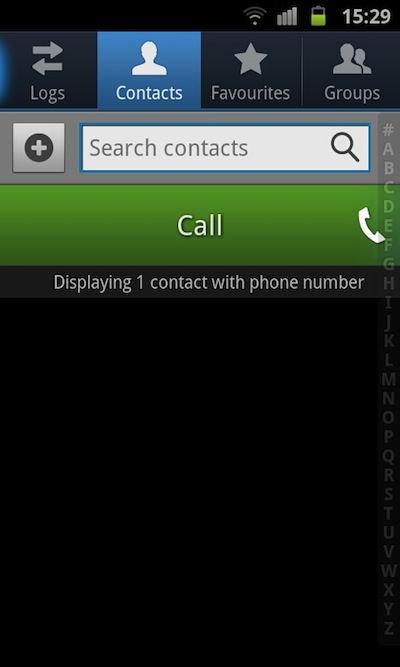
- Quick Calls & Texts: Once you have the contact you want to call or text in front of you, instead of entering it and then carrying out the operation, you can simply swipe left to place a call or swipe right to enter a text.
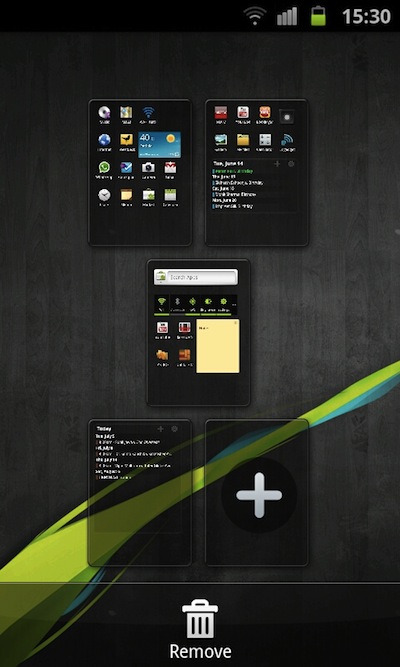
- Homescreens: TouchWiz supports upto 7 homescreens and jumping between them can quickly become a problem, but you can easily pinch to get an overview and then quickly jump to the screen you want.
- Screenshots: Taking screenshots on Android devices is a pain, but on the Galaxy S2, you can simply hit home button and then the power key while holding onto home to take a screenshot. You can then see them in the Gallery.
- Brightness Adjust: The notification bar can serve as a brightness scroll on the Galaxy S 2 if you are not using the auto brightness option. Just hit the notification bar, hold for a second and swipe left to decrese and right to increase the brightness. This is one of my favourite tweaks.
- Browsr Text Wrap: Out of the box the Galaxy S2 doesn’t automatically reflow the text in the webpage if you zoom in. But if you just goto settings and check the ‘auto-fit pages’ option, all is well again.
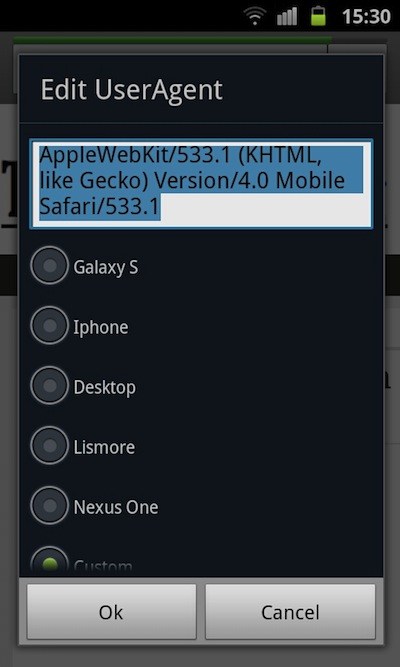
- User Agent Change: The browser lets you change the user-agent without needing an extra app, just type ‘about:useragent’ and you can choose between the iPhone, Nexus One, Desktop, Galaxy S or even enter a custom string.
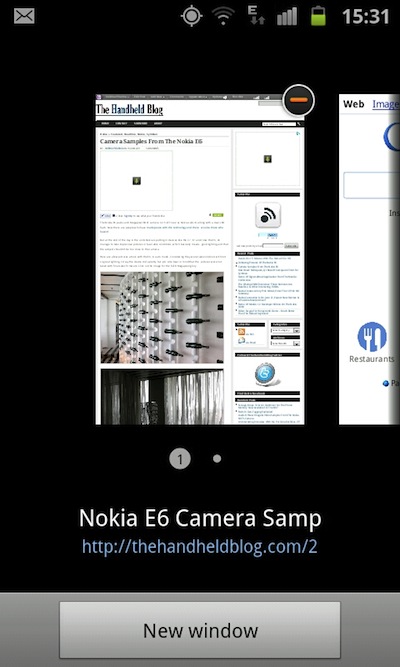
- Pinch Based Tab Switching: While you are viewing a webpage, just pinch out and you will be shown the other tabs that are open, or you can even open a new one. Handy, finally possible on the Galaxy S2.
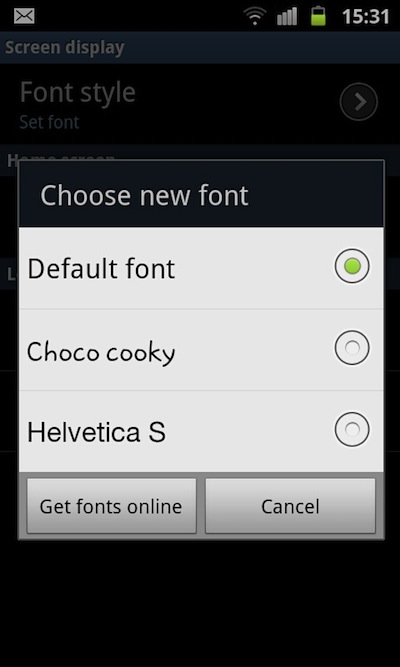
- Custom Fonts: The Galaxy S2 comes with inbuilt support for custom fonts. Just goto Settings -> Display -> Screen Display -> Font Style and choose from the three options or follow the link to download more from the Android Market.
- Change Bottom App Drawer: Its just easier to explain if you watch the video, around the 03:28 minute mark.
- Quick Slider: Whether you are in the homscreen or the app list, just roll your finger over the dots at the bottom of the screen and see the screens fly by. Beautiful and functional.
- Video Lock: Pressing the power button in video player locks the screen, now you can hold the device any way you like, no accidental presses.
- Testing Mode: *#0*# in the dialer enters the LCD test mode, useful if you are hunting for dead pixels or a few other things.

- Search Key: The SGS2 like the SGS doesn’t have a dedicated search key that all other Android devices have, but if you long press menu, it doubles as a search key and pulls search up, wherever you need it.
- Quick Dialing: On the dial pad spell the name of your contact and see it popup, great when you need to make a quick call.
- Bluetooth Mouse: The SGS 2 supports using a bluetooth mouse, the functionality is more of a proof of concept vis-a-vis being actually useful. TV out presents a useful senario.


